

Plugin configuration
Plugin main dashboard
Section titled “Plugin main dashboard”After activating the plugin, go to WooCommerce > Polski. You will see the main dashboard with sections:
- Compliance status - quick overview of which legal requirements are met
- Active modules - list of enabled modules with links to their settings
- Required actions - notifications about missing configurations
- Quick links - shortcuts to the most important settings
Enabling and disabling modules
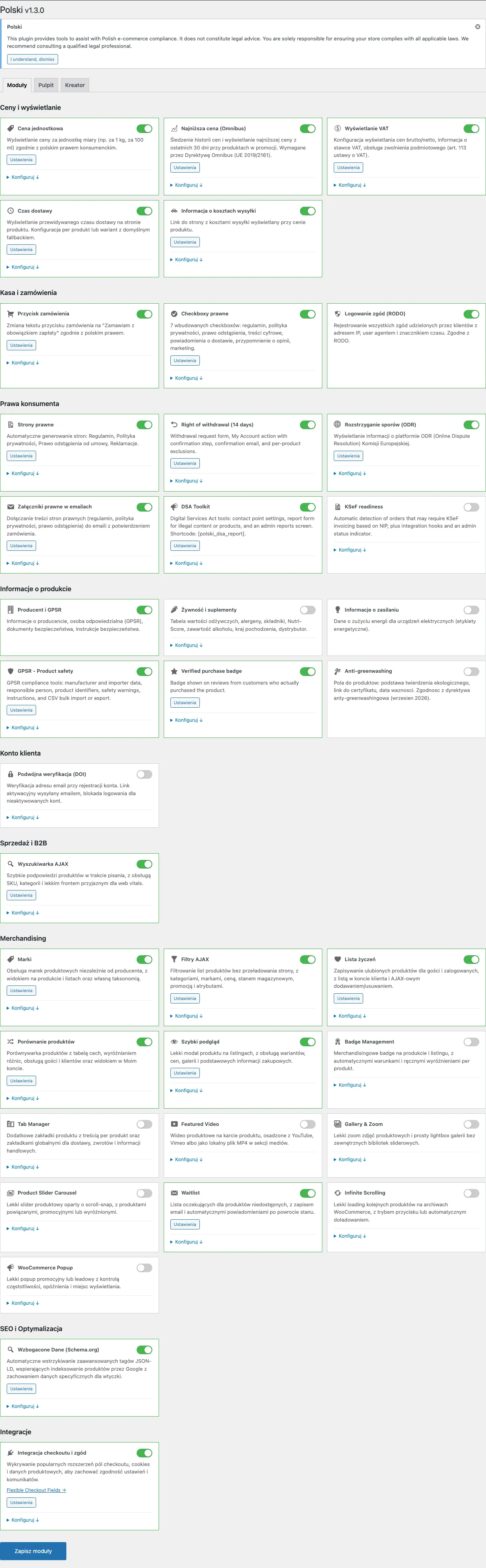
Section titled “Enabling and disabling modules”The plugin is modular - after installation all modules are disabled. You enable only the ones you need.
How to enable a module
Section titled “How to enable a module”- Go to WooCommerce > Polski > Modules
- Find the module you are interested in on the list
- Click the toggle next to the module name to enable it
- Click Save changes at the bottom of the page
How to disable a module
Section titled “How to disable a module”Click the toggle on an active module to disable it. Disabling does not delete data - you can re-enable the module without losing settings.
Recommended modules for getting started
Section titled “Recommended modules for getting started”For a typical Polish store, enable at least these modules:
| Module | Why it is important |
|---|---|
| Omnibus | Legally required - price history display |
| Order button | Legally required - “Order with obligation to pay” |
| Legal checkboxes | Legally required - consents when placing an order |
| Legal pages | Terms and conditions and privacy policy |
| Right of withdrawal | Legally required - withdrawal form and information |
| Delivery time | Recommended - estimated delivery time on product page |
| GPSR | Required from 13.12.2024 - product safety data |
Compliance dashboard
Section titled “Compliance dashboard”Check whether your store meets legal requirements here. Go to WooCommerce > Polski > Compliance.
Status indicators
Section titled “Status indicators”Each legal requirement has one of three statuses:
- Compliant (green) - requirement is met, configuration is complete
- Needs attention (yellow) - module is enabled but some configuration is missing
- Non-compliant (red) - module is disabled or configuration is incomplete
Checklist
Section titled “Checklist”The dashboard shows a checklist with steps to complete:
[x] Order button - text compliant with law[x] Omnibus - price history display enabled[ ] Terms and conditions - terms page not assigned[ ] Privacy policy - page not assigned[ ] GPSR - missing manufacturer data on 12 productsClick any checklist item to go directly to the relevant settings.
Configuring individual module groups
Section titled “Configuring individual module groups”Legal requirements
Section titled “Legal requirements”Go to WooCommerce > Polski > Legal Compliance to configure:
Omnibus (price directive)
- Enable the Omnibus module
- Set the price tracking period (default 30 days)
- Choose the display format for the lowest price
- Save changes
The plugin starts recording price history from the moment the module is enabled.
GPSR (product safety)
- Enable the GPSR module
- Fill in the default manufacturer data in global settings
- For individual products - edit data in the “GPSR” tab on the product edit page
Legal pages
- Enable the legal pages module
- Use the generator to create terms and conditions, privacy policy and return policy
- Assign generated pages in WooCommerce > Settings > Advanced > Page setup
Prices and product information
Section titled “Prices and product information”Go to WooCommerce > Polski > Prices to configure:
Unit prices
- Enable the unit prices module
- Choose the default unit of measurement (kg, l, m, pcs)
- On the product page, fill in the “Base quantity” and “Unit of measurement” fields
Example configuration in the product editor:
Product price: 15.99 PLNBase quantity: 500Unit of measurement: gReference unit: kg
Result: 15.99 PLN / 500g (31.98 PLN/kg)
Delivery time
- Enable the delivery time module
- Set the default delivery time (e.g. “1-3 business days”)
- Optionally - set individual times for specific products
Checkout and orders
Section titled “Checkout and orders”Go to WooCommerce > Polski > Checkout to configure:
Order button
- Enable the module
- The default text is “Zamawiam z obowiazkiem zaplaty” (Order with obligation to pay)
- You can customize the text, but it must meet the requirements of Article 17 of the Consumer Rights Act
Legal checkboxes
- Enable the checkboxes module
- Add required consents (terms and conditions, privacy policy)
- Configure the content of each checkbox, including links to legal pages
- Mark which checkboxes are mandatory
Example checkbox configuration:
Label: termsContent: I have read the [terms and conditions] and accept their provisions.Required: YesLink: /terms/Position: Before order buttonNIP lookup
- Enable the NIP module
- The NIP field will automatically appear on the checkout page
- After entering a NIP and clicking “Check”, company data will be automatically filled from the GUS database
Food products
Section titled “Food products”Modules for food stores. Go to WooCommerce > Polski > Food.
- Enable the modules you need (nutritional values, allergens, Nutri-Score)
- New tabs will appear on the product edit page for filling in data
- Data will automatically display on the product page in the store
Storefront modules
Section titled “Storefront modules”Go to WooCommerce > Polski > Storefront to enable additional features:
- Wishlist, compare, quick view - enable and customize appearance
- AJAX search - enable and configure the number of displayed results
- AJAX filters - enable and choose attributes for filtering
- Slider and badges - configure style and behavior
Global settings
Section titled “Global settings”In the WooCommerce > Polski > Settings tab you will find global options.
Company data
Section titled “Company data”Fill in your basic company data:
- Company name
- NIP (Tax Identification Number)
- REGON
- Registered address
- Contact email address
- Phone number
This data is used by various modules (legal pages, GPSR, DSA).
Performance
Section titled “Performance”- Resource loading - CSS and JS loaded only on pages where they are needed
- Cache - the plugin uses WordPress Transients API for data caching
- Minification - front-end resources are minified
Compatibility
Section titled “Compatibility”If your theme or another plugin causes a conflict:
- Go to WooCommerce > Polski > Settings > Compatibility
- Enable compatibility mode for problematic modules
- Adjust hook priorities if elements display in the wrong order
Verifying configuration
Section titled “Verifying configuration”After configuration, check that everything works:
- Compliance dashboard - go to WooCommerce > Polski > Compliance and check that all indicators are green
- Product page - open any product in the store and check that new elements appear (Omnibus price, delivery time, GPSR data)
- Checkout page - place a test order and check that checkboxes and the button are correct
- Legal pages - open terms and conditions and privacy policy and check their content
You can also run an automatic audit: WooCommerce > Polski > Tools > Site Audit.
Next steps
Section titled “Next steps”- Configuration wizard - automatic configuration of the most important settings
- Compliance dashboard - monitoring legal requirements status
- Site audit - automatic configuration verification
Have a question? Write on GitHub Discussions. Found a bug? Report it on GitHub Issues.