

Wishlist
The wishlist lets customers save products for later. It works for both logged-in customers and guests.
Enabling the module
Section titled “Enabling the module”Go to WooCommerce > Polski > Storefront Modules and activate the Wishlist option. After enabling, a heart icon will appear on each product allowing it to be added to the list.
Guest and logged-in user support
Section titled “Guest and logged-in user support”Guests (not logged in)
Section titled “Guests (not logged in)”For guests, the wishlist is stored in the browser’s localStorage. Data is available immediately without server requests. After logging in, the localStorage list is automatically synchronized with the database - products are not lost.
Logged-in users
Section titled “Logged-in users”For logged-in customers, data is saved in the wp_usermeta table with the key _polski_wishlist. This makes the list available on any device after logging in.
Customer account
Section titled “Customer account”The module adds a new Wishlist tab in the My Account WooCommerce section. The customer sees:
- Product thumbnail
- Name with a link to the product page
- Price (current, including promotions)
- Availability status (in stock / out of stock)
- Add to cart button
- Remove from list button
The tab is visible only when the module is active. The URL endpoint is wishlist - e.g. yourstore.com/my-account/wishlist/.
AJAX behavior
Section titled “AJAX behavior”Adding and removing products from the list works via AJAX - the page is not reloaded. After clicking the heart icon:
- The icon changes state (empty/filled) with a CSS animation
- An AJAX request is sent to
admin-ajax.php - The counter on the header icon updates in real time
AJAX actions handled by the module:
| Action | Description |
|---|---|
polski_wishlist_add | Add product to the list |
polski_wishlist_remove | Remove product from the list |
polski_wishlist_get | Get the entire list |
polski_wishlist_clear | Clear the entire list |
Shortcode [polski_wishlist]
Section titled “Shortcode [polski_wishlist]”The shortcode displays the wishlist table anywhere in the store.
Parameters
Section titled “Parameters”| Parameter | Type | Default | Description |
|---|---|---|---|
columns | string | all | Columns to display (comma-separated) |
max_items | int | 50 | Maximum number of products on the list |
show_empty | string | yes | Whether to show a message when list is empty |
Usage example
Section titled “Usage example”[polski_wishlist columns="image,name,price,add_to_cart" max_items="20"]Usage in a PHP template
Section titled “Usage in a PHP template”echo do_shortcode('[polski_wishlist columns="image,name,price,add_to_cart"]');Available columns
Section titled “Available columns”image- product thumbnailname- product name with linkprice- pricestock- stock statusadd_to_cart- add to cart buttonremove- remove from list buttondate_added- date added
Button on the product page
Section titled “Button on the product page”The wishlist button displays by default below the Add to Cart button on the product page. The position can be changed with a filter:
add_filter('polski/wishlist/button_position', function (): string { return 'before_add_to_cart'; // or 'after_add_to_cart', 'after_summary'});Button on the product list
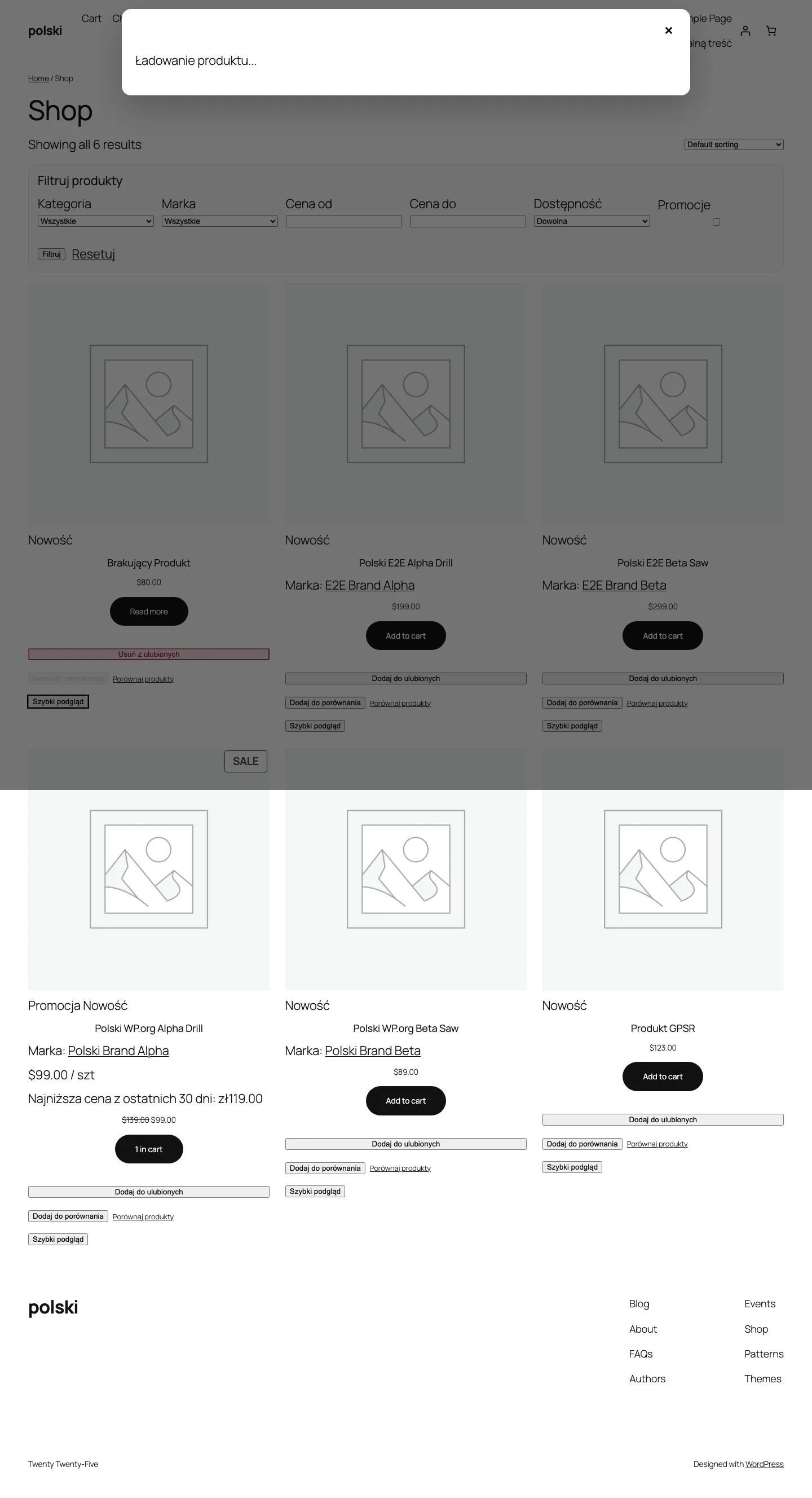
Section titled “Button on the product list”On category and archive pages, a heart button appears on the product thumbnail in the corner. This can be disabled in module settings.
Store header
Section titled “Store header”The module adds a heart icon with a counter to the store header (next to the cart). Clicking opens a dropdown with a preview of saved products. The icon position is controlled by a hook:
add_action('polski/wishlist/header_icon', function (): void { // Custom icon position in the header});CSS styling
Section titled “CSS styling”The module uses CSS classes with the .polski-wishlist- prefix. Main classes:
.polski-wishlist-button- add/remove button.polski-wishlist-button--active- active state (product is on the list).polski-wishlist-table- list table.polski-wishlist-count- header counter.polski-wishlist-empty- empty list message
Performance
Section titled “Performance”Wishlist data for logged-in users is cached in object cache (if available). The button HTML fragment is cached via wp_cache_set() with the polski_wishlist group. Cache is automatically cleared after adding or removing a product.
Troubleshooting
Section titled “Troubleshooting”Button does not appear on the product - make sure the theme supports the woocommerce_single_product_summary hook. Some themes override default WooCommerce templates.
List does not synchronize after login - check if you have a caching plugin that aggressively buffers the login page. Disable cache for the my-account page.
Header icon does not display - the theme must support the wp_nav_menu_items or storefront_header hook. If you use a custom theme, add the icon manually in the template.
Report issues: github.com/wppoland/polski/issues